Your affiliates already send shoppers to your store. Branded Links give them a friendlier way to do it: short, readable links on your store domain, like yourstore.com/jane-doe, with the affiliate’s name or company right in the path. Refersion still tracks every click back to the right affiliate.
Branded Links are available now to Shopify merchants on eligible plans.
What a Branded Link is
A Branded Link is a real redirect on your Shopify store. The affiliate shares a clean, human-readable path, the shopper clicks and lands on the page you chose, and the visit is credited to the affiliate.
There’s no domain setup. Links are served from your connected Shopify store’s domain, and each one also appears in your store’s URL redirects, so you can find them in Shopify too.
Turning it on
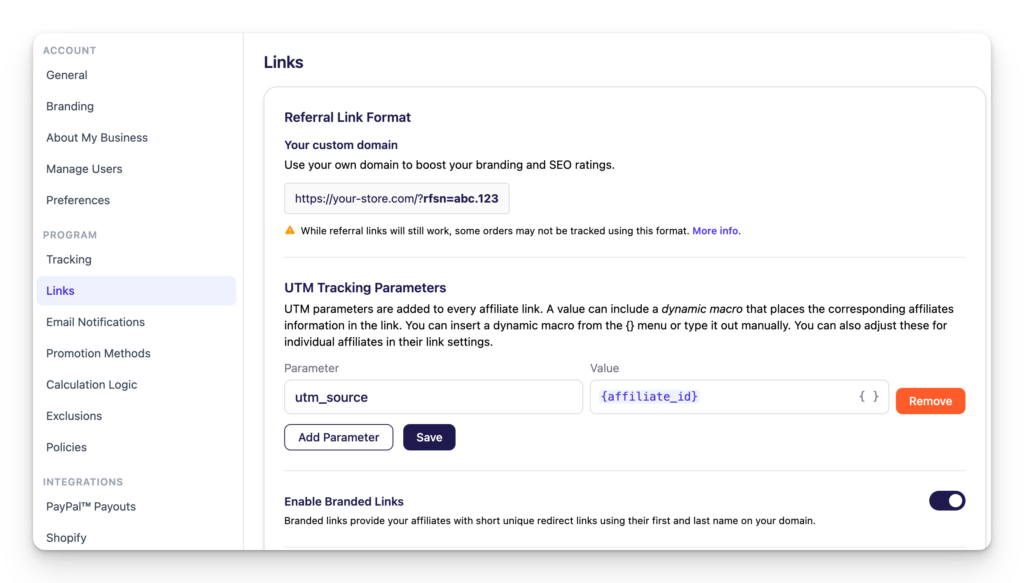
Go to Settings → Links and switch on Enable Branded Links.
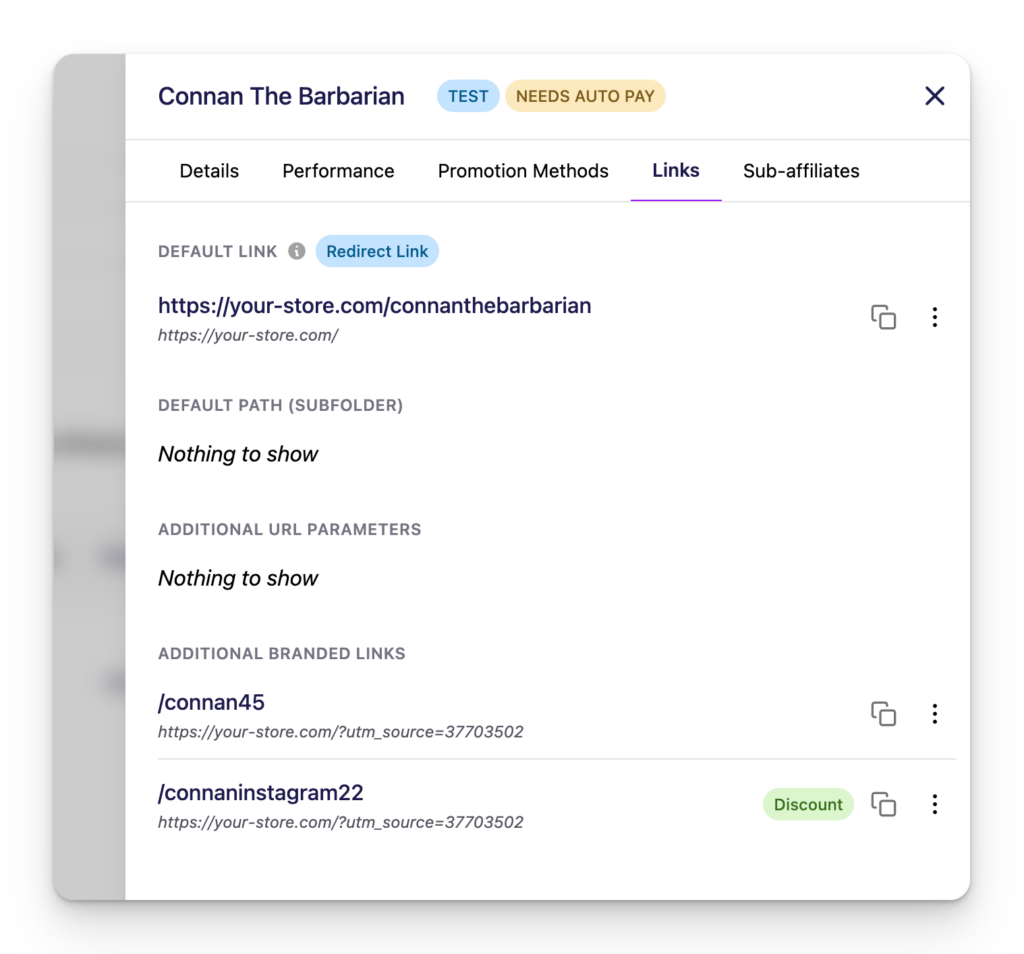
Every active affiliate gets a Default Link right away, based on their company name or their own name. Affiliates you approve later get theirs at the moment you approve them, with the discount applied automatically to that Default Link if you have discount links enabled.
The Default Link points to your homepage. Copy it from the Links tab in the affiliate’s details. You can change its path, but you can’t delete it.
Sending shoppers somewhere specific
A homepage link works for general promotion. Affiliates who write about one product or one collection usually want a link that goes there.
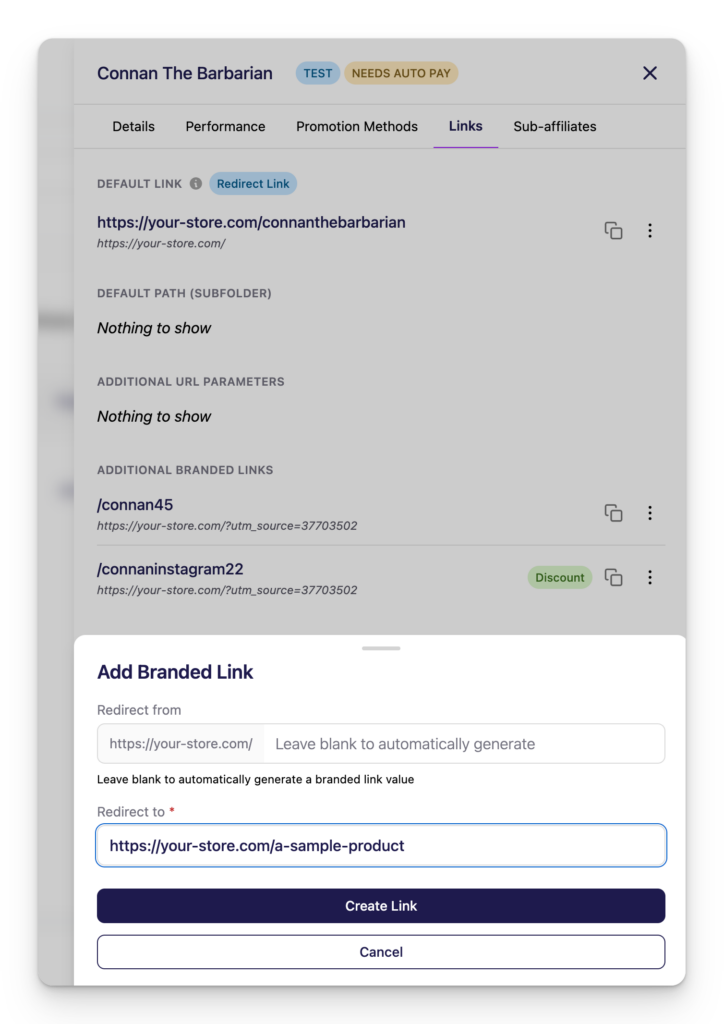
From the affiliate’s Links tab, click Add Branded Link and pick any page on your store: a product, a collection, a landing page. Each link shows where it sends shoppers (“Redirects to …”), and you can edit the path or the destination whenever you need to.
Setting the format once
You decide what links look like, and the setting applies to every affiliate.
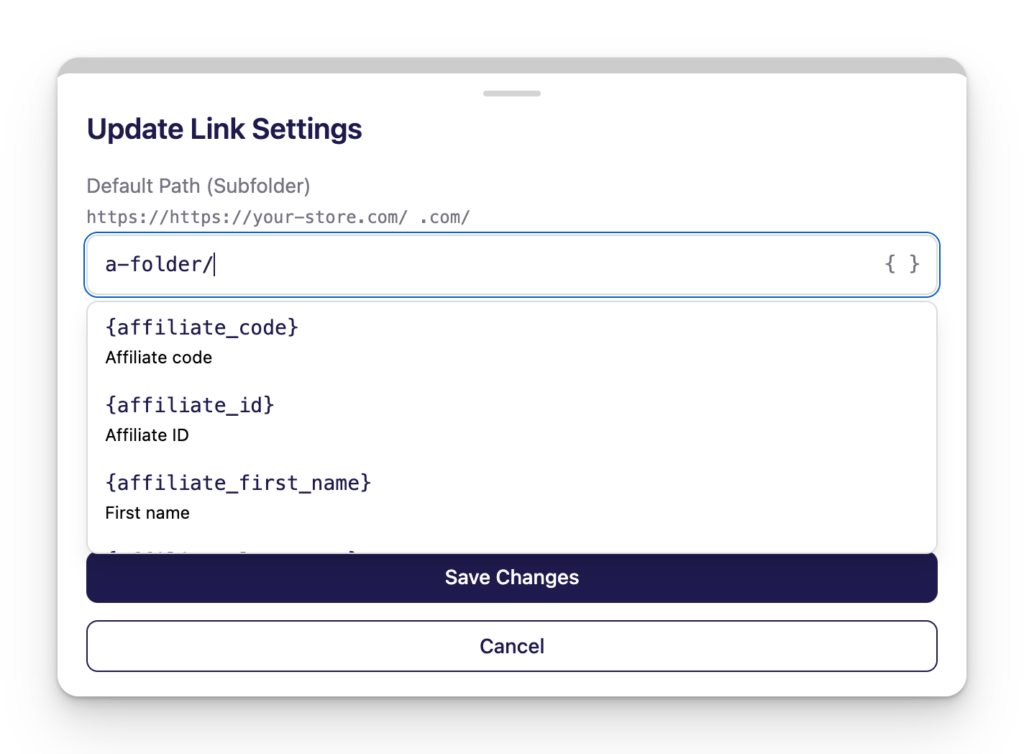
In Default Path (Subfolder), set the pattern for new links. The { } picker inserts details such as the affiliate’s company name, last name, affiliate code, affiliate ID or offer ID, and recognized details are highlighted so you can see what will be filled in.
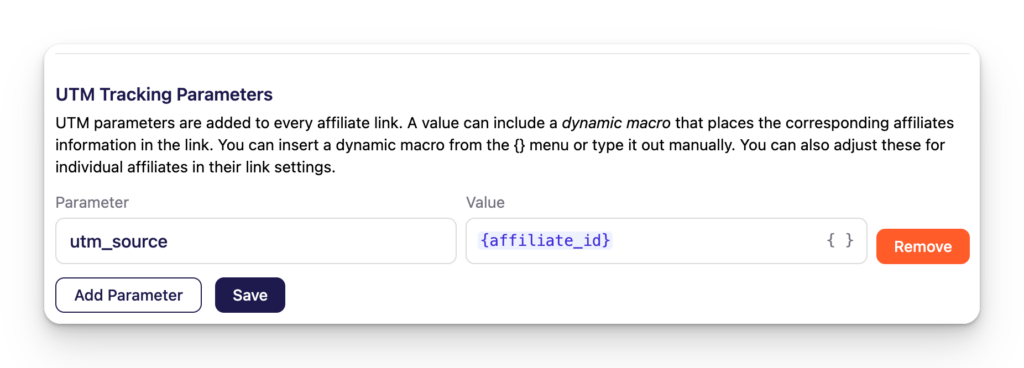
In Settings → Links → UTM Tracking Parameters, add parameters that get appended to every affiliate link. Values can use the same { } details, so each affiliate’s traffic arrives in your analytics already labelled. You set it up once instead of tagging links by hand.
Discount links
When discount links are enabled, the discount is applied automatically to the Default Link of newly approved affiliates, so there’s nothing to set up as you approve people.
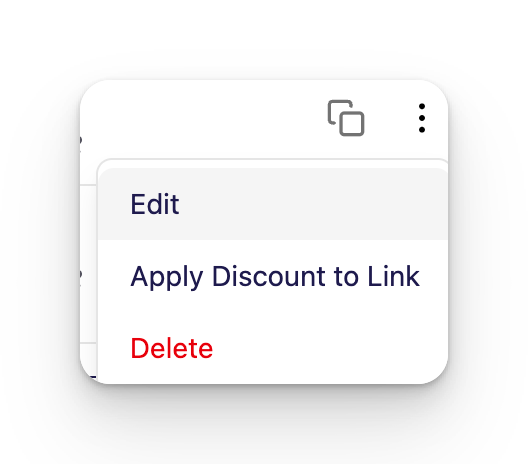
You can change it link by link. On each Branded Link, use Apply discount to link or Remove discount from link to choose whether that link applies your affiliate discount at checkout. An affiliate can keep a plain link for everyday sharing and a discount link for a promotion, both on your domain.
The discount itself is configured in Settings → Links → Discount Link Settings.
What affiliates see
Affiliates don’t set anything up. Their dashboard shows “Your Link” (the Default Link), then each additional “Redirect Link” with the page it goes to. The marketplace shows the same links inside each offer. They can copy and share right away.
Deleting a link
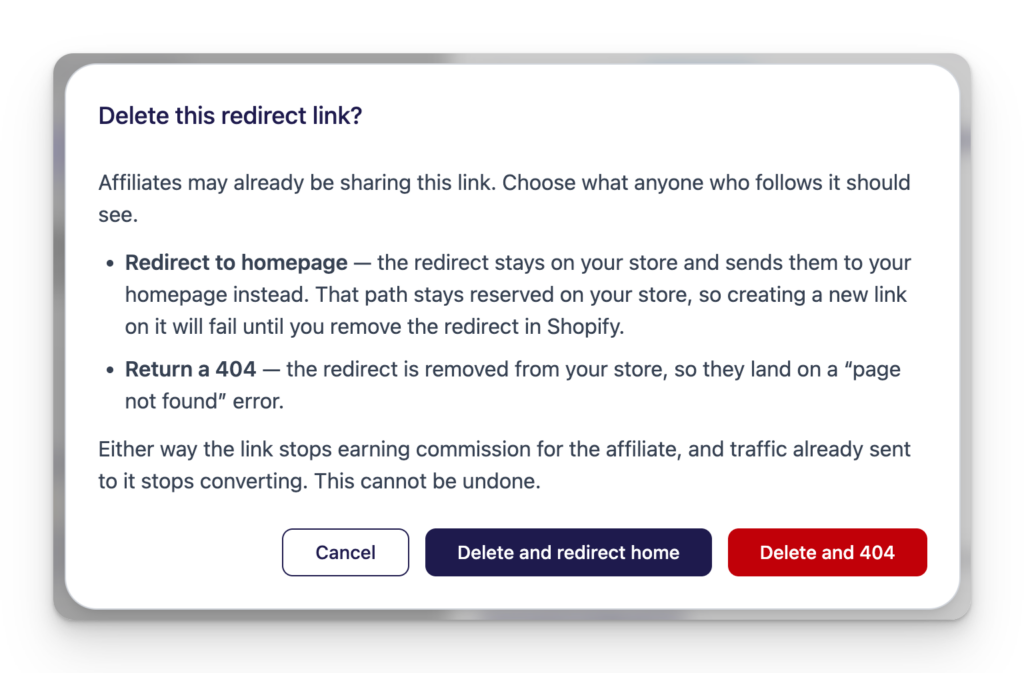
When you delete an additional Branded Link, you choose what happens to people who still click it. Delete and redirect home sends them to your homepage. Delete and 404 lets the link stop working.
Plans and limits
Your plan sets how many additional Branded Links each affiliate can have, either a fixed number or unlimited. The Default Link doesn’t count toward it. When an affiliate hits the limit, Add Branded Link is hidden and a notice explains why. If your plan changes, existing links keep working and only new additional links are affected.
Before you start
Changing a link’s path retires the old URL. The old address stops working and nothing redirects from it, so tell the affiliate before they share the new one.
The { } details work in the default path and in UTM values.
If you use vanity links today, they keep working exactly as before. Contact Refersion support when you’re ready to move your account to Branded Links.
Try it
Open Settings → Links in your Refersion dashboard and turn on Enable Branded Links. If you’d like help moving over from vanity links, contact Refersion support.