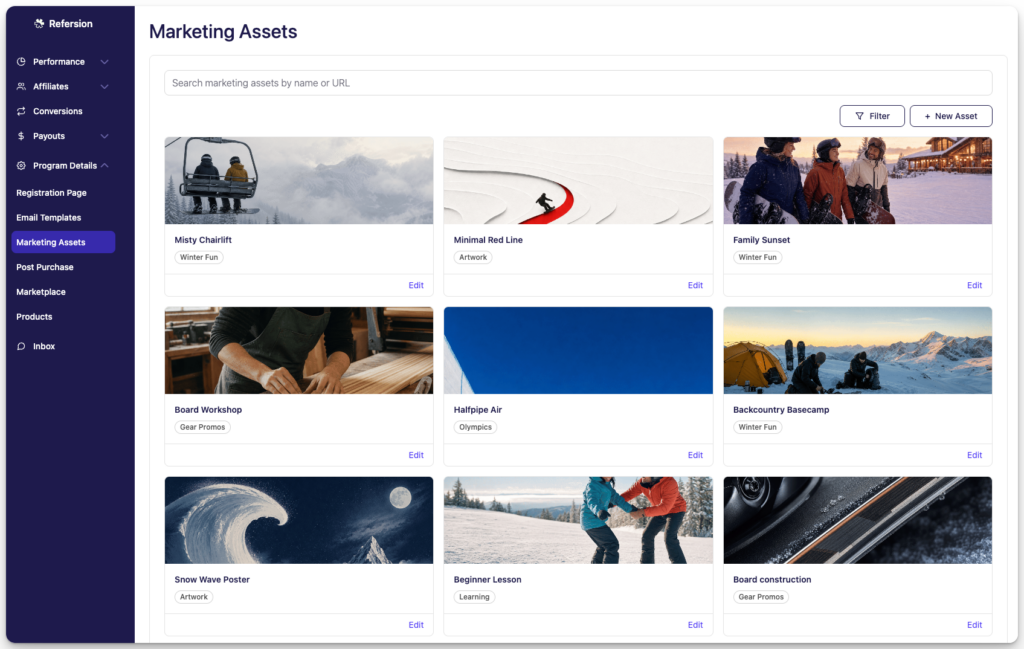
Marketing Assets has been redesigned. The job it does is the same one it always did: hand your affiliates the banners and text links they need, keep them organized, keep them current. What changed is how much of that you can do quickly, and from where.
Nothing is waiting on you. Every asset you had is already in the redesigned page, categories included. Open it and your library is there.
Built for mobile too
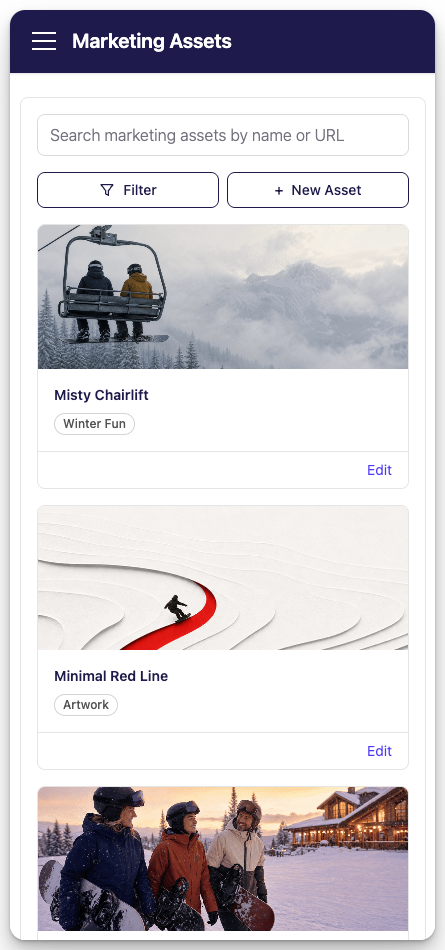
The layout adapts to the screen you are on. One column on a phone, two on a tablet, three on a wide monitor. Search, filters, and the New Asset button run full width on small screens so they stay easy to hit with a thumb.
That matters more than it sounds. Plenty of merchants check on their program in gaps between other things, on a phone, and a page that reads well at that size gets checked more often. Pull up a banner, confirm it points at the right landing page, fix the URL, all from the couch.
Search that finds things fast
The search box matches on asset name and destination URL, and it runs as you type. If you know you built something for the spring sale but cannot remember what you called it, search the URL and it surfaces.
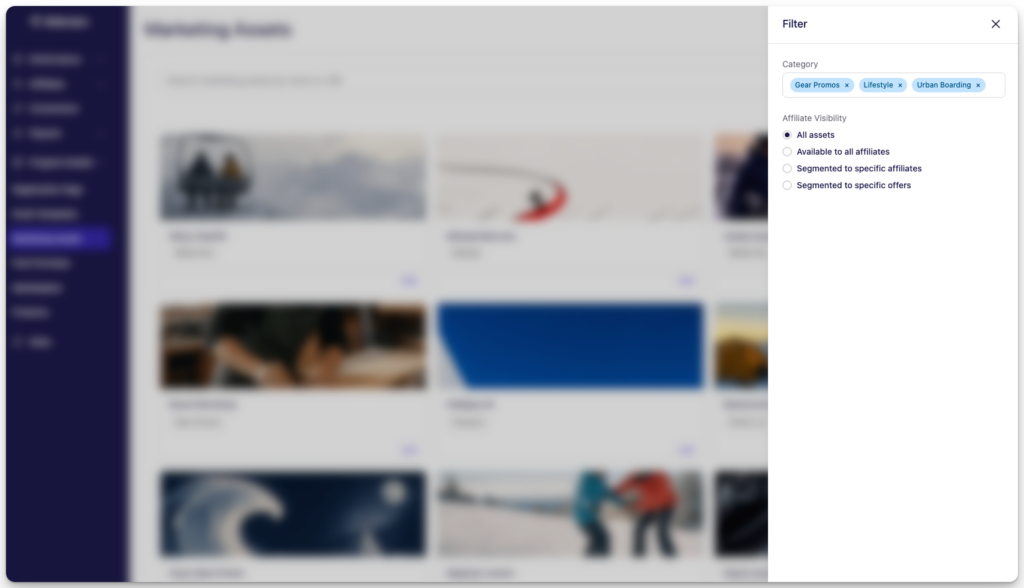
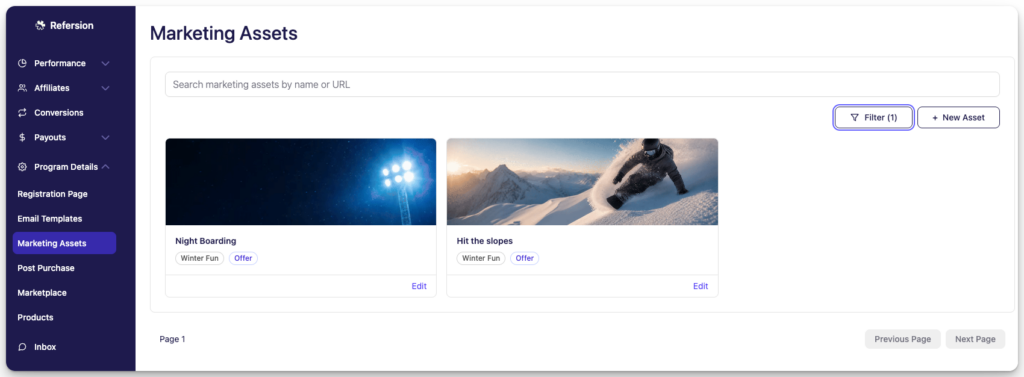
Filters live in a slide-out drawer next to search. You can filter by one category or several at once, and the Filter button carries a count so you can see at a glance that you are looking at a filtered view. That count has saved me from the “where did all my assets go” moment more than once.
Assets come back 24 per page, which fills complete rows at every screen width. Small thing. It looks better than a ragged last row.
Segmentation by affiliate and offer
If you are on the Growth plan, you can now scope an asset to specific affiliates, specific offers, or both.
The setup is two multi-selects in the asset drawer. Leave them empty and the asset is visible to everyone. Pick three affiliates and only those three see it. Pick an offer and the asset shows up only for affiliates promoting that offer.
What this buys you is a library that can speak to different partners differently. Your top ten can get assets that nobody else sees. A brand-specific offer can carry its own banners so affiliates browse assets that apply to what they are actually promoting. Exclusive creatives for a launch partner is a two-click job.
Cards show a badge when an asset is segmented, so you can tell scoped assets from open ones without opening each one. The filter drawer picks this up too: you can list only the assets available to everyone, only the ones scoped to affiliates, or only the ones scoped to offers. Useful when you want to audit what a new affiliate will actually see on day one.
The rest of the page
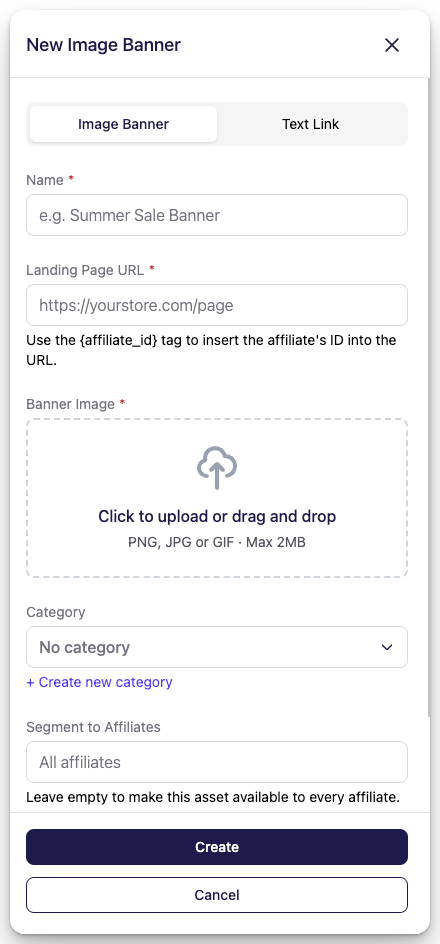
Creating an asset happens in a drawer over the grid, so you keep your place while you work. You pick Image Banner or Text Link at the top and the form changes to match. Banner uploads take PNG, JPG, or GIF up to 2MB, and the card shows the dimensions on the thumbnail so affiliates know what they are grabbing.
Categories can be created inline. If you are halfway through building an asset and realize it needs a category that does not exist yet, there is a link right in the form. Create it, and it is selected for you when you come back.
Go look at it
Marketing Assets is in the left navigation. Your library is already there, your categories came with it, and, if you are on a Growth plan, you have segmentation waiting in the asset drawer.
Tell us what is missing. This page will keep changing, and the fastest way onto that list is to say what would make your day easier.